
How to Set Up Email Forwarding for Automatic Invoice Tracking
Most restaurants already receive supplier invoices by email. That means the easiest way to automate invoice tracking is to route those messages directly into MarginSeal instead of downloading and uploading files one by one.
This workflow matches how the product already operates. The logs show inbound email webhooks, sender tracking, PDF attachment detection, and immediate processing of forwarded supplier emails.
Before you begin
After signup, you should have a dedicated MarginSeal forwarding address for your account. The idea is simple: whenever a supplier invoice arrives in your inbox, your email provider forwards it to that address automatically.
From there, MarginSeal handles the intake. The logs show the system parsing raw email content, finding PDF attachments, storing the files, and starting OCR-based invoice processing right away.
Gmail setup
If you use Gmail, create a filter for invoice emails from each supplier.
- Open Gmail Settings.
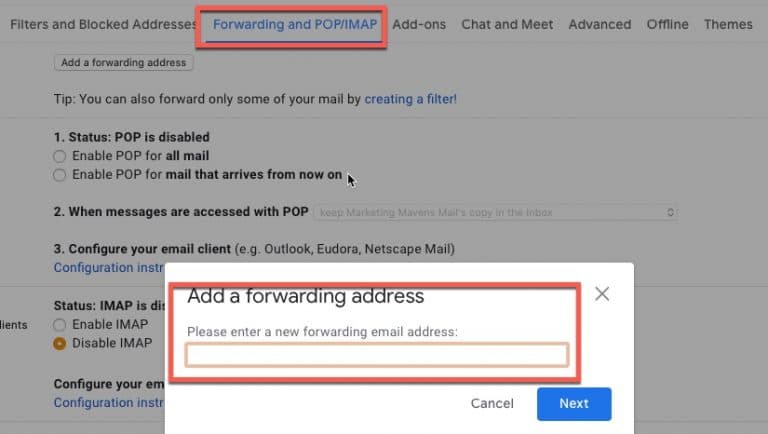
- Go to Filters and Blocked Addresses.
- Click Create a new filter.
- In the From field, enter the supplier's billing or invoice email address.
- Click Create filter.
- Choose Forward it to and select your MarginSeal address.
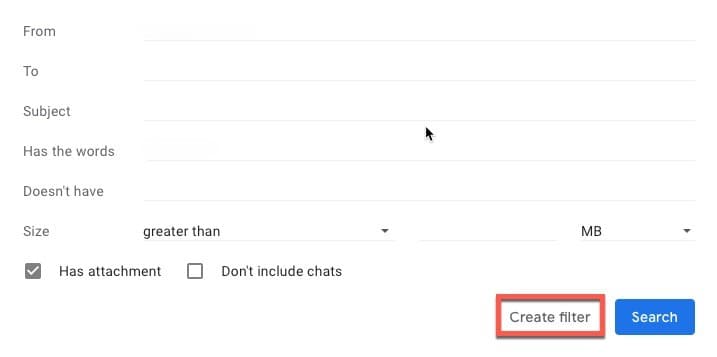
- Save the filter.
If you receive invoices from several suppliers, repeat this for each sender or use a broader rule when that makes sense for your workflow.
Outlook setup
If you use Outlook, create a mail rule with the same logic.
- Open Outlook Settings.

- Go to Mail, then Forwarding.
- Enable forwarding and enter your MarginSeal address.
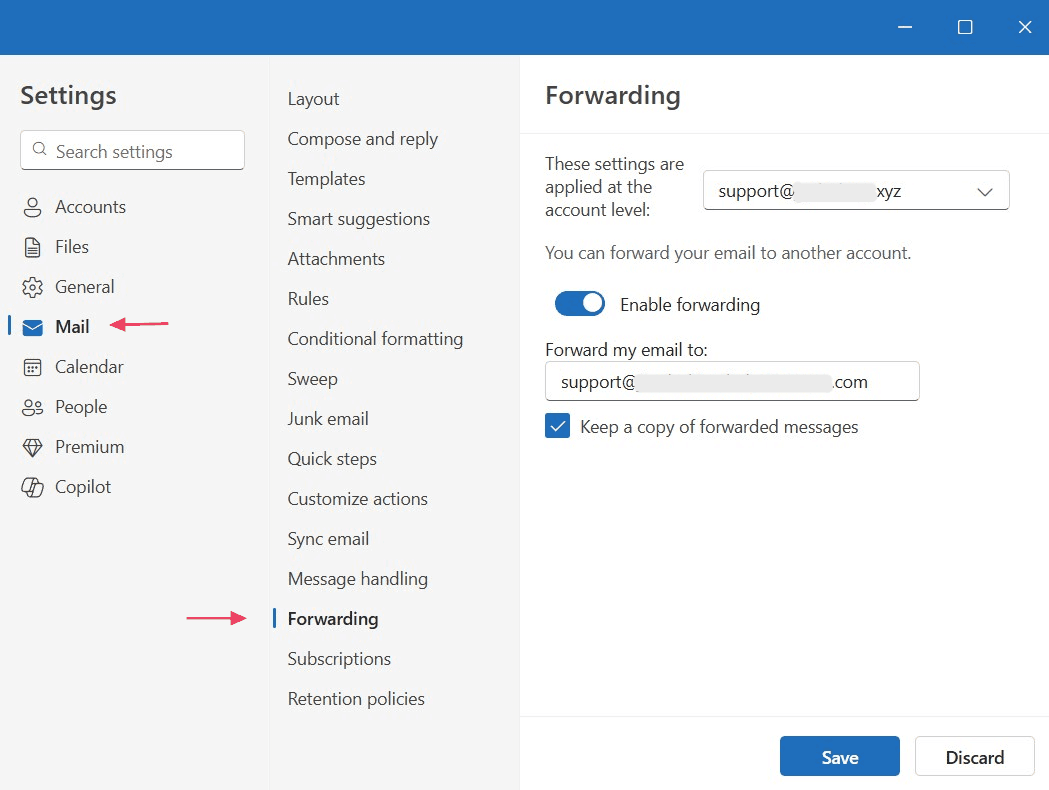
- Optionally, go to Mail then Rules to create rules for specific supplier senders.
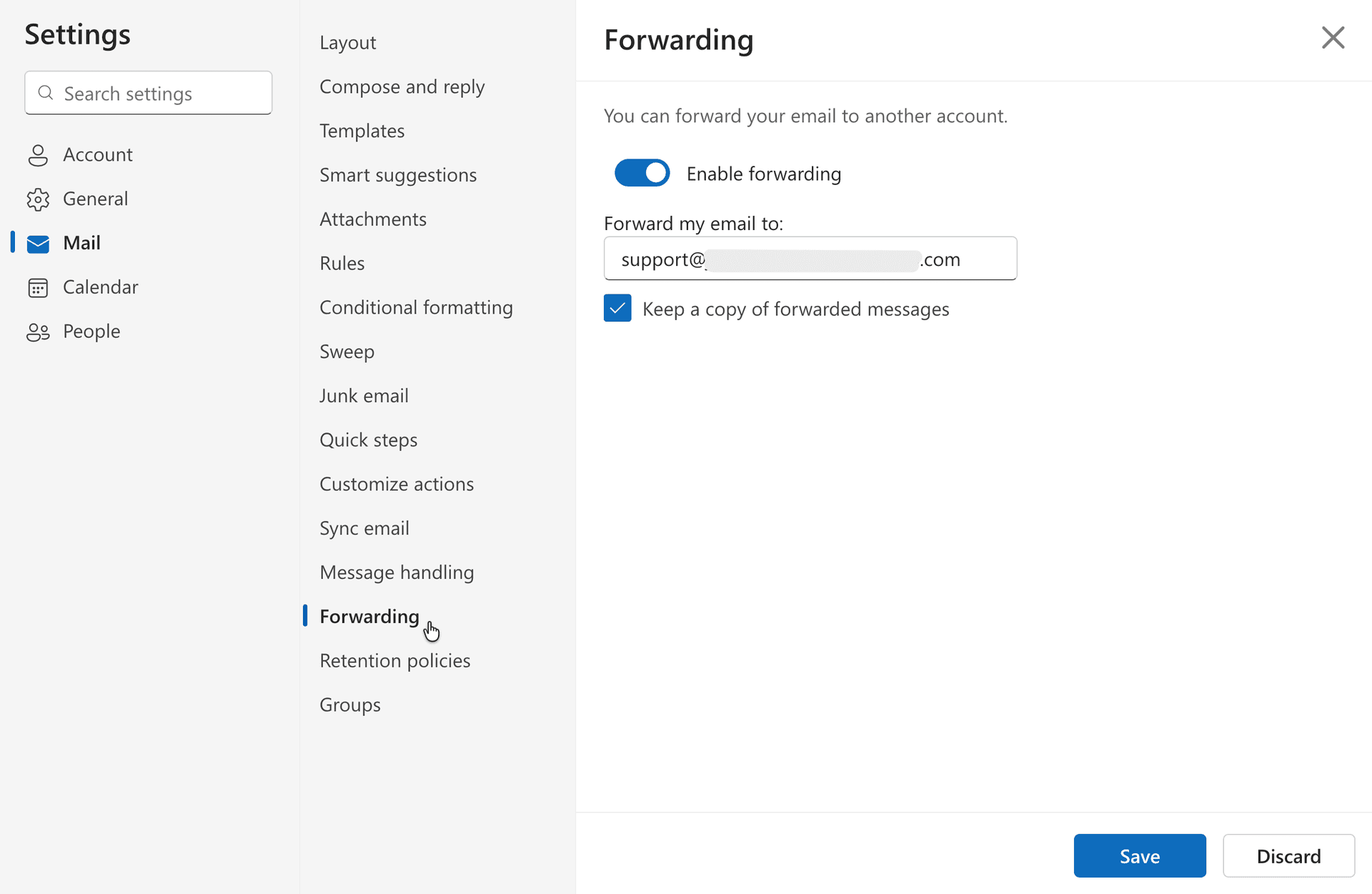
- Save the rule.
The exact menu names may vary slightly depending on whether you use desktop Outlook or Outlook on the web, but the setup principle is the same.
What happens after forwarding
Once the email is forwarded, MarginSeal receives the message, identifies the user, finds the attached PDF, and begins invoice processing. The logs show this full sequence repeatedly: inbound webhook, user identification, PDF detection, OCR extraction, metadata extraction, line-item parsing, and invoice completion.
If the invoice contains several delivery sections, MarginSeal can split the document into chunks before processing so the extracted result better matches the underlying invoice structure. That multi-delivery handling is visible in the logs on several real supplier documents.
After extraction, the system checks line-item values, matches or creates products, compares prices against history, and flags changes when relevant. The logs also show alert behavior being triggered when thresholds are met, or skipped when a user has alerts disabled.
Good setup habits
A few practical habits make automatic forwarding work better:
- Forward every supplier invoice, not just the ones you want to check.
- Keep the supplier sender rules specific enough to avoid noise.
- Test one real invoice after setup so you can verify it appears correctly.
- Leave duplicate protection to the system rather than manually trying to manage resends.
That last point matters because duplicate emails happen in real operations. MarginSeal already blocks exact duplicates, which the logs show through repeated duplicate-hash checks on forwarded supplier emails.
What this replaces
Without forwarding, invoice tracking depends on somebody remembering to upload files. With forwarding, invoice intake becomes part of the normal email flow instead.
That saves manual steps, but it also makes the data more complete. When every supplier invoice follows the same path into the system, you get a cleaner purchasing history and more reliable price tracking over time.